
Monitor — Advanced Settings
This article describes how to configure settings that extend the default Display component capabilities.
Examples:
- multiple monitors
- non-standard resolution
- Configure different monitor settings for different users
Configure monitor settings on the ThinClient.
Using the ARandR screen layout editor, create and test a display configuration on the thin client.
- Select the System menu item and open
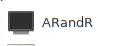
- Configure display settings as required (layout, resolution, orientation, etc.).
- Test the settings by clicking the Apply button.
- Save the settings.
ℹ️ The saved layout file is an executable shell script that uses thexrandrto set the display settings. View and edit the script with a text editor.
Assign monitor settings in openthinclient Management.
- Open the layout file with a text editor and copy the call to
xrandr. Copy the entire line — including the wordxrandr. - Create a new Display component and insert the xrandr command under the menu item Custom xrandr Command (takes precedence).