
ThinClient
TranslationIn pending.the ThinClient configuration, set basic options and create shortcuts to applications and devices.
Configuration
Value
Explanation
Use of the name:
MAC address
or 00:00:00:00:00:00
openthinclient uses the MAC address as the unique ID of the thin client.
If the PXE service policy is set to "All PXE Clients via the Default Profile," use the MAC address 00:00:00:00:00:00 to identify the default profile (see ProxyDHCP/PXE configuration).
The location of the thin client. All settings made in the location configuration are applied by the thin client. Hardware Type defined hardware types
The thin client applies all settings made in the hardware type configuration.
Startup options (Advanced settings — apply with care!)
Value
Explanation
Override the site's startup options for this thin client.
Leave these fields blank to take full advantage of openthinclient's functionality. This feature may be removed in a future version.
NFS share nameTFTP Boot Server
Manual kernel specification
Override the advanced settings for the hardware type of this thin client. Additional kernel parameters
Manual specification of the initrd
Log Level
Configure logging as required.
INFO
WARNING
ERROR
DEBUG
Sets the log level for openthinclient applications. The log output can be viewed in the Log Viewer, among other places.
Note, excessive logging can impair the operation of the ThinClient. Set the log level only for active troubleshooting.
Custom FolderEnable
Disabled
Start normally
Debug init script
Start without X-Windows, console only
Debug init and no X
Advanced settings for debugging boot problems. Enabling these options prepares the system for diagnostic work.
Debug init script:
Stops the execution of the initrd at selected points and opens a busybox debug shell for inspecting the system.
In the shell, use help Check the available commands.
Start without X:
Start without the X Window System X11 and the services and applications that depend on it. Open a login console usingCTRL+ALT+F1-F6.
Custom variables
Value
Explanation
$CUSTOM1
$CUSTOM2
$CUSTOM3
Any valuesLink any strings to the ThinClient here. These strings are available on the ThinClient as environment variables.
Special actions on the ThinClient

Description

Send a Wake-On-LAN packet to the ThinClient’s MAC address.

Restart the thin client.

Shut down the thin client.
Displays the IP address of the ThinClient at the last boot.
Click the IP address to copy it to the clipboard.

Reapply settings
This performs the following actions:

Open a new browser window with a VNC viewer on the thin client.
Assign the Remote Connection (VNC) application to the thin client or user.
After a successful login, launch the Remote Connection (VNC) application.

Log Viewer
Displays the latest log entries for the thin client.

Delete Thin Client Profile
Deletes the thin client profile.
ThinClient Overview
On the overview page, view and manage all configured thin clients.
Filter
Use the filter bar to control which ThinClients appear in the overview.
ThinClients are displayed if at least one of the following properties partially matches:
Display
The following properties are displayed in the overview:
Online status, a circle indicating whether the thin client is active (blue) or inactive (gray).
To determine the online status, the thin client regularly sends a heartbeat signal to the server via HTTP over port 8080.
Actions
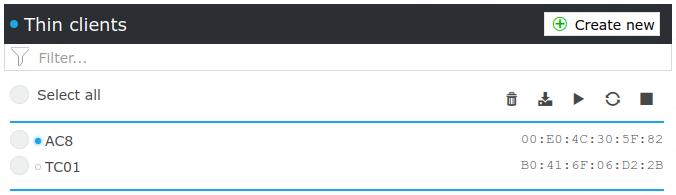
Perform the following actions with the selected thin client:
Action
Explanation
 Delete
Delete the selected thin clients.
 LDIF Export
Export the selected thin clients with no assignments, e.g., applications or components.
 Wake-On-LAN
Send Wake-On-LAN packets to the MAC addresses of the selected thin clients
 Restart
Restart the selected thin clients.
 Shut Down
Shut down the selected thin clients.