
Boot Error — Specify the Correct Mode Name
Error when booting a thin client
If the thin client automatically detects the VGA mode when attempting to boot, or if the correct VGA mode has been manually assigned to it, the system will boot successfully.
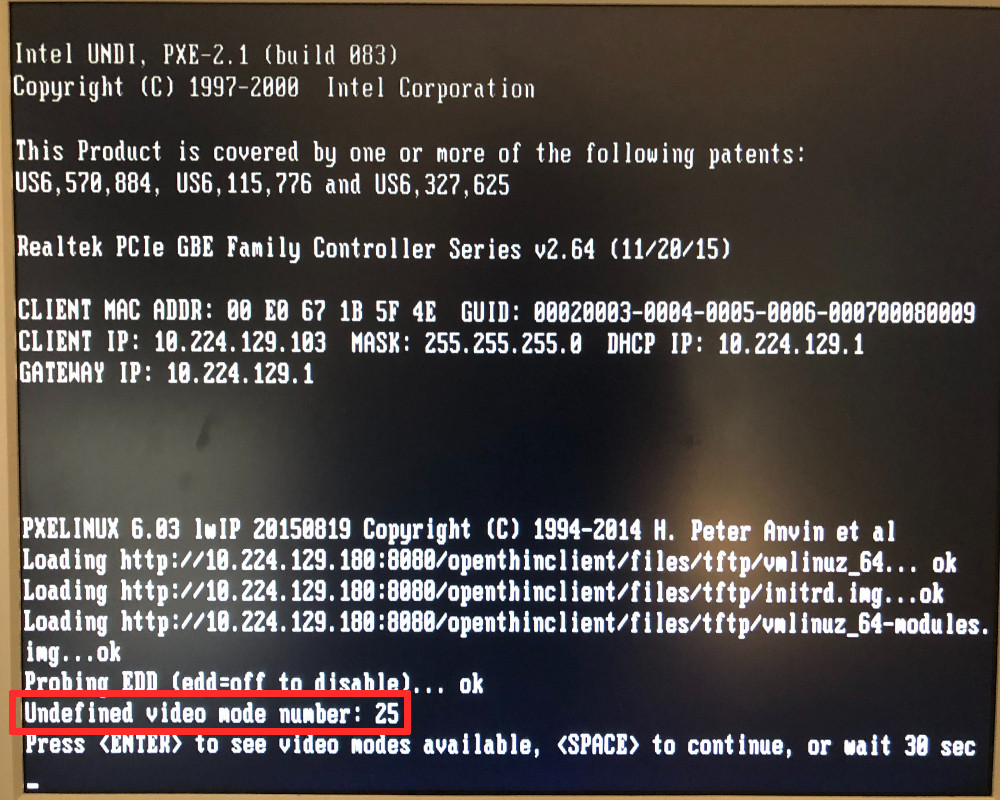
In this case, the error message is "Undefined video mode number: 25".
Resolve the error by changing the splash screen size
Reduce the splash screen size in the thin client’s hardware type settings.
Under "Splash Screen at Startup," change the splash screen size.
Fix the error by setting the VGA mode
On the thin client
To apply the fix, press Enter within 30 s of the error message.
A list of several VGA modes appears.
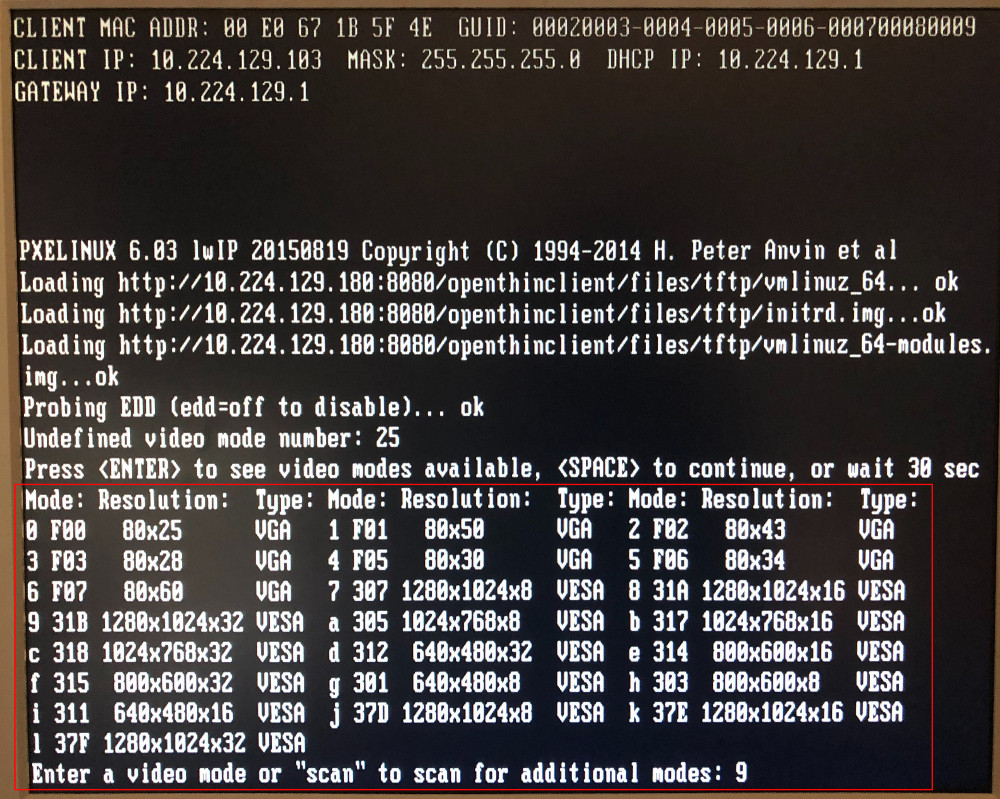
From this list, select the mode that matches the current screen.
In this case, the correct mode is 9 or 31b.
Note the name of the correct mode.
To start the thin client immediately, enter the mode name and confirm withEnter.
This workaround starts the thin client once in the selected mode.
In the openthinclient Manager
Single thin client
If the issue affects a single thin client, navigate to its settings on the left side of the openthinclient Manager.
There, under Additional Kernel Parameters vga=9 , replacing 9 with the name of the correct VGA mode.
The thin client will now start in this VGA mode every time.
If the issue occurs on multiple thin clients, navigate to the Hardware Types tab in the openthinclient Manager.
There, create a new hardware type specifically for the thin clients that require this setting.
Refer to the Hardware Type section for details on creating a new hardware type.
After creating the hardware type, the system redirects to its settings; if necessary, select the settings on the left side of the openthinclient Manager.
There, under Additional Kernel Parameters vga=9 , replacing 9 with the name of the correct VGA mode.
Assign this hardware type to all affected thin clients.
All thin clients assigned this hardware type will now start up in the selected VGA mode every time.