
Boot Errors — Troubleshooting PXE Boot
Preparing for a PXE boot
Ensure PXE Boot is enabled on the client and set as the first option in the boot order.
Configure BIOS accordingly. Select "First Boot Device Network" or a similar option. On some systems, the entry may appear as the network card name, e.g., "Intel onboard NIC" or "Realtek D3400," or as the interface, e.g., "IBA CL Slot."
Disable "Quiet Boot" and all motherboard splash screens in the BIOS. For troubleshooting, the system should be as "talkative" as possible.
If the system fails to boot or the screen stays dark, proceed with troubleshooting.
Error, e.g., PXE-M0F
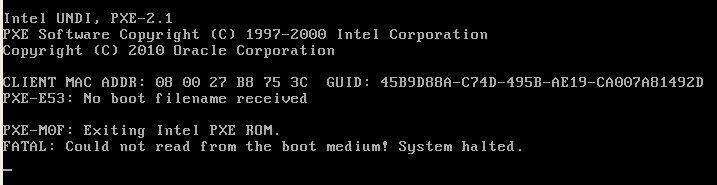
Check the following items and work through all the points below:
Does the computer to be booted have multiple network cards?
On systems with multiple network cards, often only one card is PXE-bootable. Try all network cards.
PXE-E53 no boot filename received
If openthinclient runs on Windows, disable the Windows Firewall.
PXE-E16 no offer received
In the BIOS, set the network card to IPv4.
PXE-E32 TFTP open timeout
Try either setting a different boot method in the ThinClient’s BIOS/UEFI or using a different bootloader in the assigned hardware type:
Start option → Boot method → Safe
Confirm that the server and client operate on the same subnet.
If necessary, deploy a DHCP server in the client's subnet that assigns DHCP options 66 and 67 plus a default gateway. In this case, set the PXE proxy service to "single-homed-broadcast.
" Alternatively, configure an IP helper on the router at the network boundary. In this case, set the PXE proxy service to "single-homed-broadcast."
Confirm that only one PXE boot server operates in the network.
By default, the openthinclient server serves only its clients configured in the openthinclient Manager (whitelist). However, if the PXE response overlaps with the response from another server, problems often arise. Ensure that the desired client receives service only from the intended PXE boot server.
Loading .../vmlinuz failed: No such file or directoryIf the error appears after an update, check the hardware type (under "Expert Settings") and the ThinClient profile (under "Boot Options") to ensure that the kernel name "vmlinuz" isn't explicitly listed.
Use 64-bit hardware.
Since version 2020.2, openthinclient supports only 64-bit hardware.
Settings for booting in "safe mode"
Here, configure the following basic settings for a kind of "safe mode" that increases the chance of successfully booting the device.
Select these settings:
Bootloader → TFTP
Kernel and init via → TFTP
Graphics driver → Xorg-Vesa
Splash screen → no splash screen, show all startup messages
If the boot process pauses, continue troubleshooting.
If the system stops after PXE boot, kernel, and initrd load, continue troubleshooting.
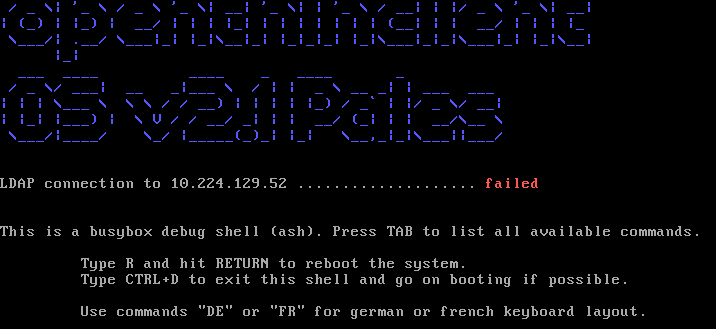
If the system displays this output, the client's IP address acquisition is pending after the kernel and initrd load. This behavior indicates a DHCP configuration task or a missing network-card driver.
Use the debug shell
If the boot process aborts, a debug shell is available. Access it by pressing any key during the "Prolog." Exit the debug shell with the command DE or FR to switch to a German or French keyboard layout. The American layout is active by default. Press TAB to display the list of available commands. This includes a wide selection of tools from the current Busybox.
Use ifconfig to check, for example, whether the network card has been detected:
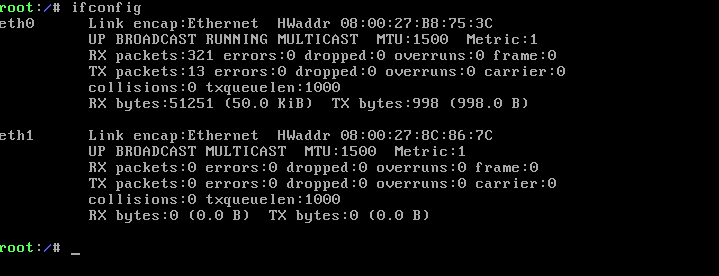
In the example above, the system has recognized the cards, indicating that a driver exists, and the next step involves assigning an IP address. In this example, use udhcpc -i eth0 to obtain an IP via DHCP and determine the cause of the error. If you see ifconfig -a , check for entries like eth0 or eth1, assume the system lacks a driver for the network card.
In theory, after resolving an error, e.g., obtaining an IP address later or setting it manually, the boot process can continue. Exit Busybox with the command exit.
You can find the current init scripts for the openthinclient OS at any time on Bitbucket or directly in Busybox (files: /init and /init_functions).
Debug mode for a client
In addition to the debug shell, put a client into debug mode. This approach pauses the init script at multiple, specified points — similar to breakpoints — and launches a debug shell at each stop. exit , resume execution each time.
Set a client to debug mode by configuring the client profile under Startup Options > Debug Mode for Startup > Debug init-script (for experts).